Setting Quiz/Exam Deadlines
When modifying an existing quiz, any of the default settings can be adjusted per your preference. Quiz settings can be accessed with the following steps:
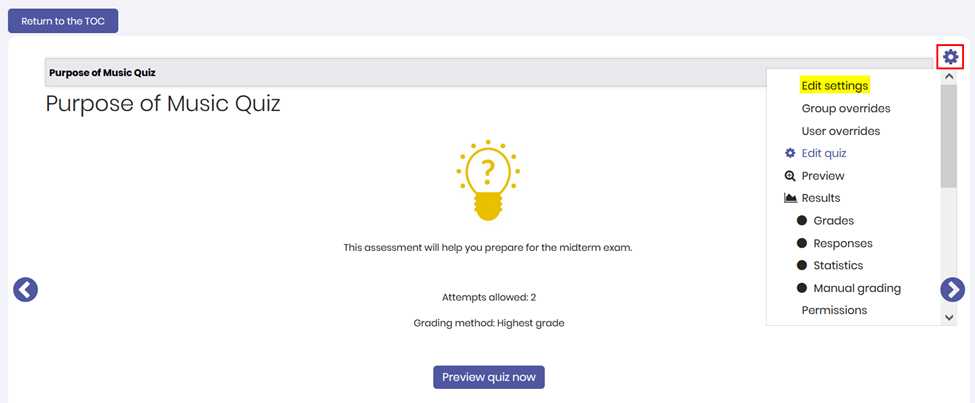
- Click your quiz from your course home page.
- From the right side of your screen, click the cogwheel icon.
- Click 'Edit settings'.
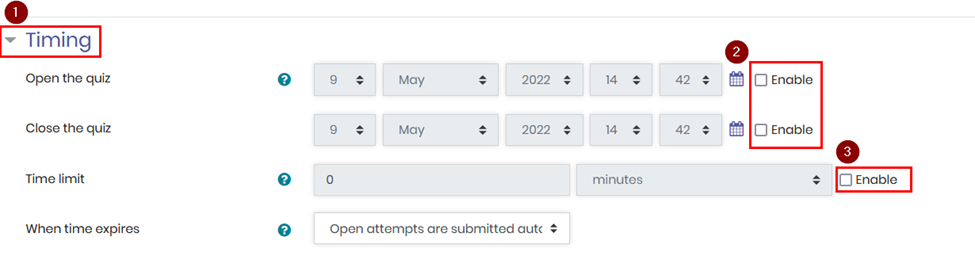
To enable a deadline and a time limit on a quiz:
1. Click to expand the 'Timing' pane.
2. Check ‘Enable’ to the right of the ‘Open the Quiz’ and ‘Close the quiz’ field.
• Adjust the start and stop dates and times as necessary.
3. Check 'Enable' to the right of the 'Time limit' field.
• Adjust how much time students will have to complete the quiz.
Once your changes are complete, click 'Save and return to course' or ‘Save and display’ at the bottom of the page. Please note: adjustments made to time limits will be applied to any open attempts in progress.

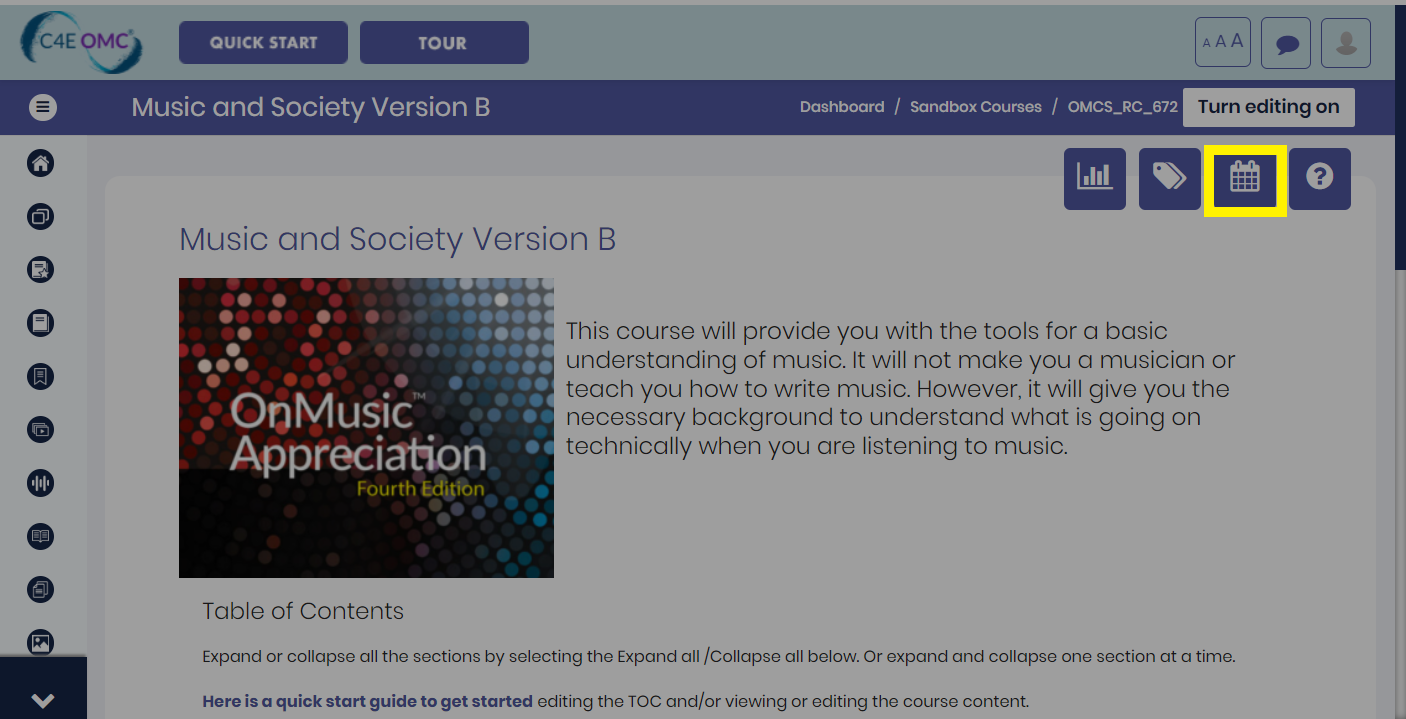
To set deadlines for all OMC coursework from one page, go to the 'Edit Date' page from the OMC course menu.
- From the main course page, select the ‘Edit Date’ button.

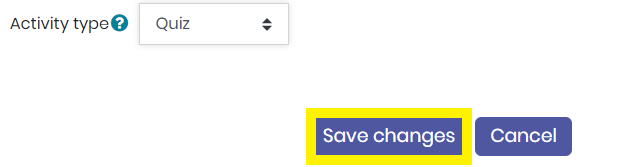
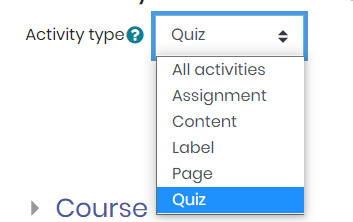
2. Use the filter to select the different types of activities to view and modify. Applying the filter will change the form display but will not save any existing changes. Ensure you change the ‘Activity Type’ to ‘Quiz.’ Please note: allow some time for the page to load when you first access the 'Edit Date' page.
3. Expand the module pane and then adjust the Open and Close dates and times as necessary.
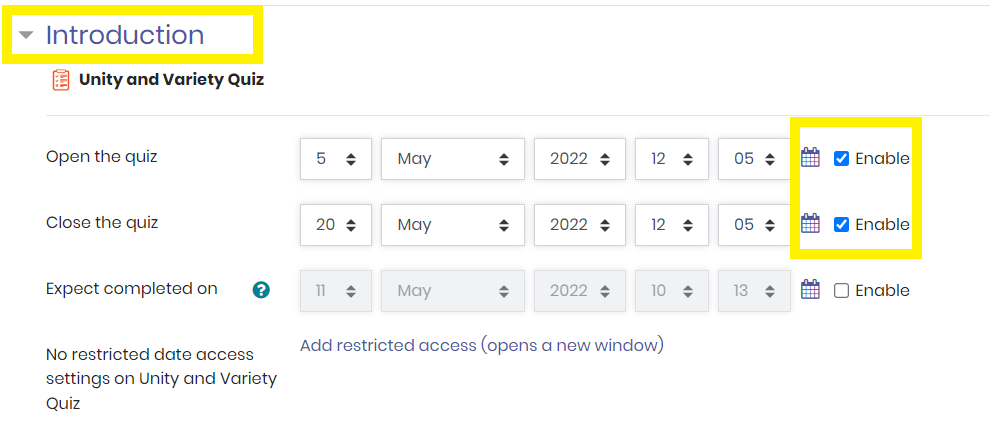
You may use this page to make changes to deadlines for all your quizzes, exams, and assignments. When setting quiz/exam deadlines, please keep in mind that once the end date and time of a quiz has elapsed, all active quiz attempts will automatically close.
4. Once you’ve made your adjustments to the Open and Close dates, please be sure to save by selecting the ‘Save Changes’ button.