Assignment Grading Overview
Our assignment grading allows easy access to student submissions so that you can comment, annotate, and grade, all from a single grading window! With our assignment grading, you are able to:
- Access an uploaded file submission directly from the marking pane. With our updated grading, file submissions no longer have to be downloaded or opened externally.
- Scribble, stamp, and add lines and shapes to create unique, customizable notes for your students. Once saved, students can access your notes by viewing or downloading annotated PDFs of their submissions.
- Highlight and comment on specific portions of text.
- Save comments you wish to reuse for other submissions (i.e., 'Great job!') by adding them to your Quicklist.
- Easily navigate to another student using the 'Change user' dropdown field, or the 'Save and show next' function.
For step-by-step instructions on assignment grading, please see the link below:
Otherwise, keep reading to learn more about our assignment grading features!
Assignment Grading Tools and Features
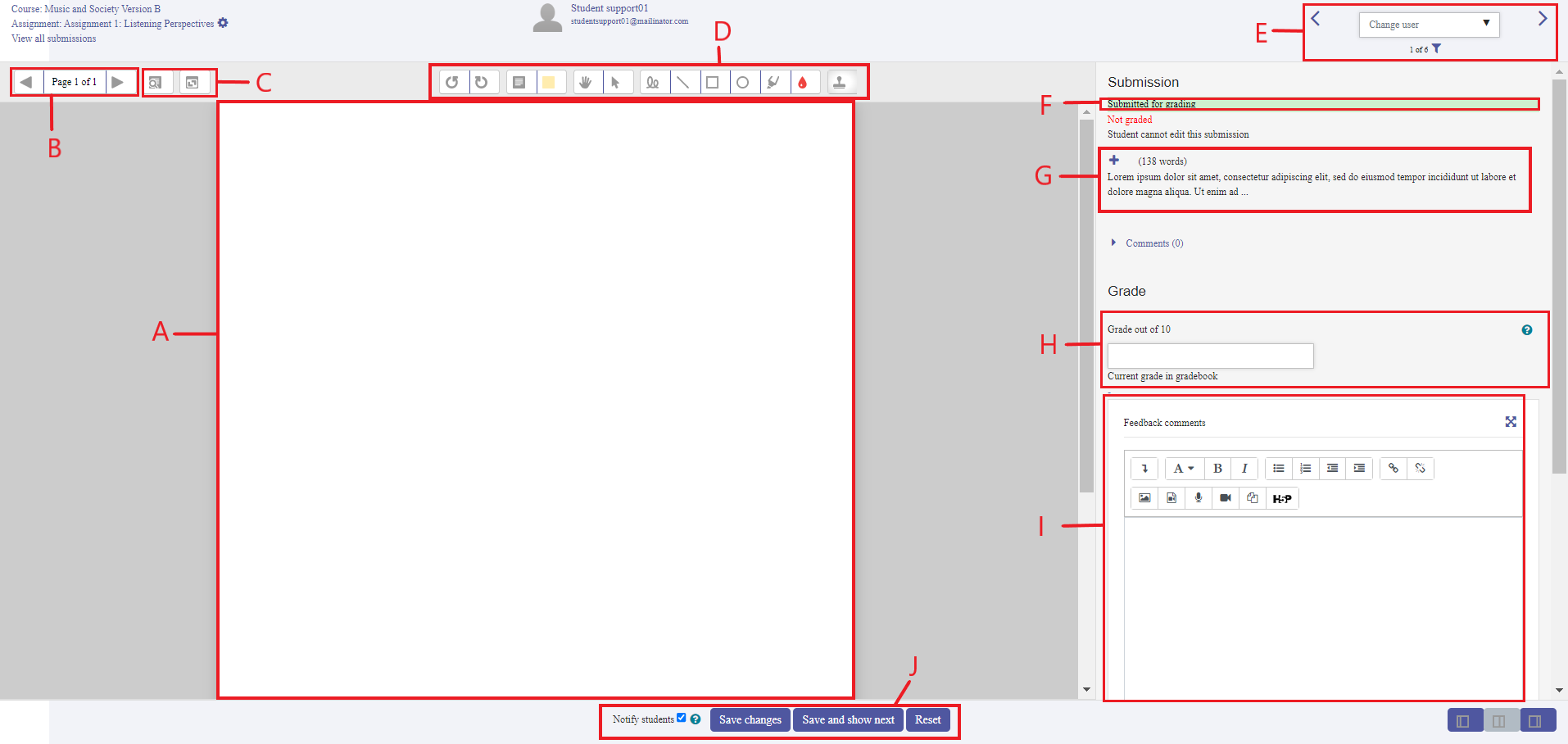
A. Student's online text and/or uploaded file will generate in this pane.
B. Allows paging through submission text.
C. Search or hide/display instructor comments.
D. Marking tools for commenting and annotating directly on students' submissions. (Marking tools are listed below.)
E. If no changes were made to the submission, the 'Change user' arrows and dropdown can be used to select another student's submission. (When accessing the 'Change use' dropdown, asterisks indicate a submission requires grading.)
F. Submission status, indicates whether an assignment is ready for grading.
G. Assignment Submission Type: Students may upload a document file or submit their assignment through online text. If a student has used online text, click the '+' icon to expand the text.
H. Grade field for entering grade.
I. Text field for entering feedback comments.
J. Save options.
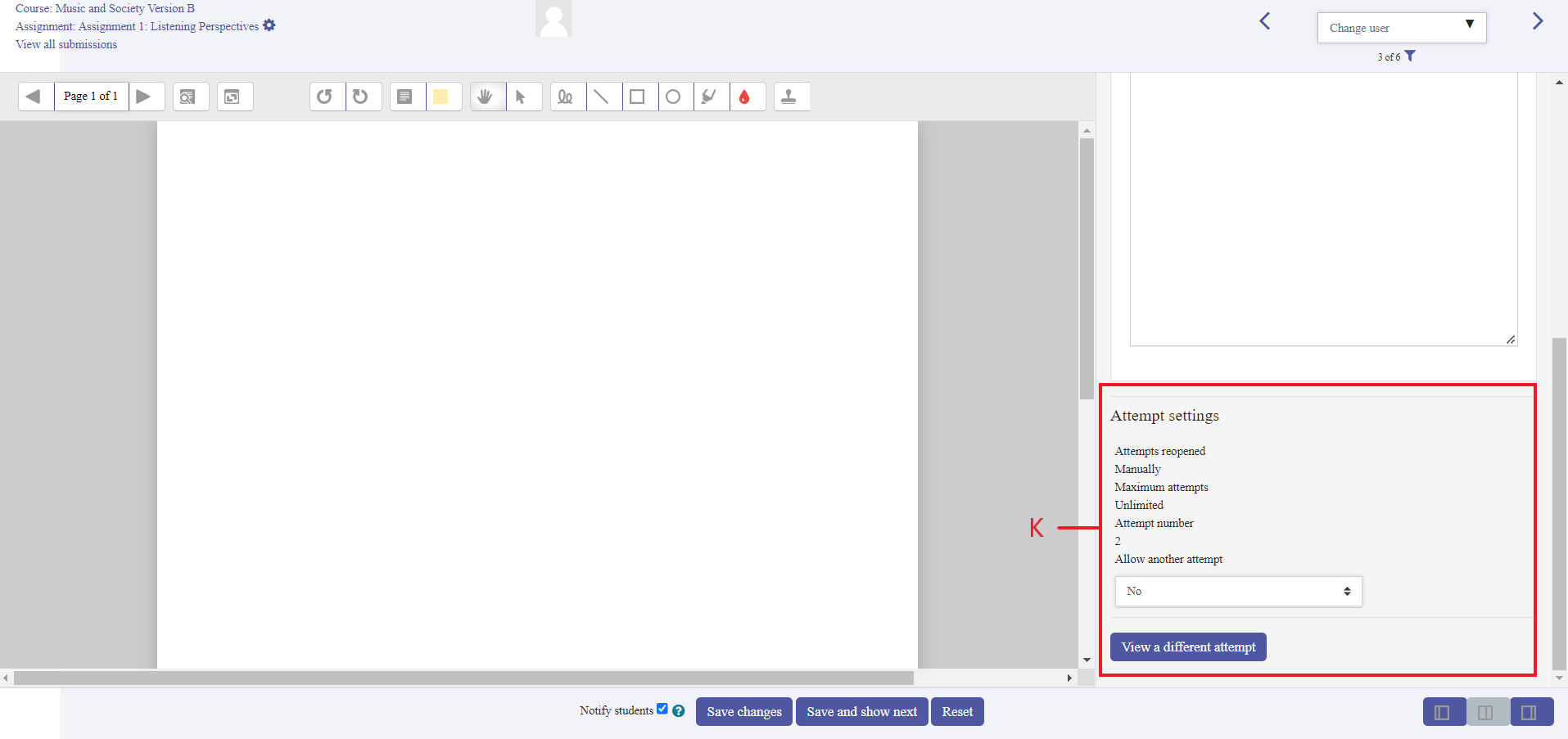
K. Attempt Settings (scroll down on the right pane to see the attempts settings.) In the Attempt Settings, you may allow another attempt for the assignment or view a different attempt. Select the 'View a different attempt' button to see a popup window which will show the students other attempts for this assignment.
Marking Tools

a. Comment box g. Square shape
b. Comment color h. Circle shape
c. Drag i. Highlight
d. Cursor j. Highlight color
e. Scribble k. Stamp tool
f. Line l. Stamp options
Deleting Comments or Annotations
To delete an onscreen comment:
- Click the 'Expand/Collapse all comments' (see 'C' above) icon to display all onscreen comments.
- On the comment you wish to delete, click the small arrow icon, and select 'Delete comment.'
To delete an onscreen annotation:
- Select the cursor icon (see 'd.' above).
- Click on the annotation you wish to delete. A trashcan will appear.
- Click on the trashcan icon.